What the code should hold
A QR code on a box can carry one of three things, and the choice decides how well the label ages.
The first is the contents, written out. “Garage 4: extension cords, bike lights, tire pump” scans without a connection and depends on nothing staying online. The list is frozen, though. Put a fourth thing in the box and the label is wrong until you reprint it.
The second is a link to a note or a spreadsheet row. The code stays the same while the list behind it changes, which suits boxes that get opened and repacked. It needs signal where the boxes are, and it stops working if the note is deleted or its sharing setting changes.
The third is a short ID such as BOX-012 that matches a row in an inventory you keep somewhere else. It makes the smallest code of the three, and you look the ID up after scanning. This is the one that still works for a garage or a storage unit with dozens of boxes.
For a house move, where every box is unpacked within a few weeks, written-out contents are simplest. For long-term storage, use a link or an ID.
How big to print it
A QR code is a grid of square modules. The smallest version is 21 × 21 modules and each larger version adds four per side, up to 177 × 177 (DENSO WAVE, which created the format). The more you put in, the bigger the grid, and on a label of a fixed size each module gets smaller. This maker uses error correction level M, where the smallest grid holds 14 bytes, enough for BOX-012 or GARAGE-04. The 50-character contents line above needs a 33 × 33 grid, so on the same label each module comes out about two thirds as wide.
The format also asks for a clear margin four modules wide on every side (DENSO WAVE). Keep tape and marker pen out of it.
With two lines of text beside or under it, the maker draws the code at these sizes:
| Sheet | Label size | Labels per sheet | QR code |
|---|---|---|---|
| 5160 | 2-5/8 × 1 in | 30 | 0.71 in (18 mm) |
| 5163 | 4 × 2 in | 10 | 1.42 in (36 mm) |
| 5164 | 4 × 3-1/3 in | 6 | 1.55 in (40 mm) |
| 5168 | 3-1/2 × 5 in | 4 | 2.39 in (61 mm) |
| L7160 | 63.5 × 38.1 mm | 21 | 22 mm |
| L7165 | 99.06 × 67.73 mm | 8 | 35 mm |
| L7166 | 99.06 × 93.12 mm | 6 | 44 mm |
Before printing the whole run, print one label, stand where you will stand when you look for a box, and scan it with the phone you will use. If it hesitates, move to a bigger label or put less in the code.
One sheet, a different code on every label
- In a spreadsheet, make one row per box: the box name, a short contents line, and what the code should hold in the last column.
- Open the 5168 template (four 3½ × 5 in labels), or L7165 on A4. Choose “A different label for each entry”, set Code to QR code and tick “Take each label’s code from its last line”.
- Copy the rows and paste them into the entries box. Each row becomes a label and each column a line, and the last column becomes the QR code.
- Turn on “Outline labels”, print one page on plain paper at 100% and hold it over a label sheet against a window. Then print on the labels.
If the sheet is partly used, set “Start at label” to the first empty one. Nothing you paste is uploaded; the PDF is made in your browser.
Where to stick them
Put the label on the side of the box, since stacked boxes hide their tops. A second label on the next side means one faces out whichever way the box is turned. Keep the code off the tape seam, where the cardboard bends every time the box is opened.
Labelling boxes one at a time
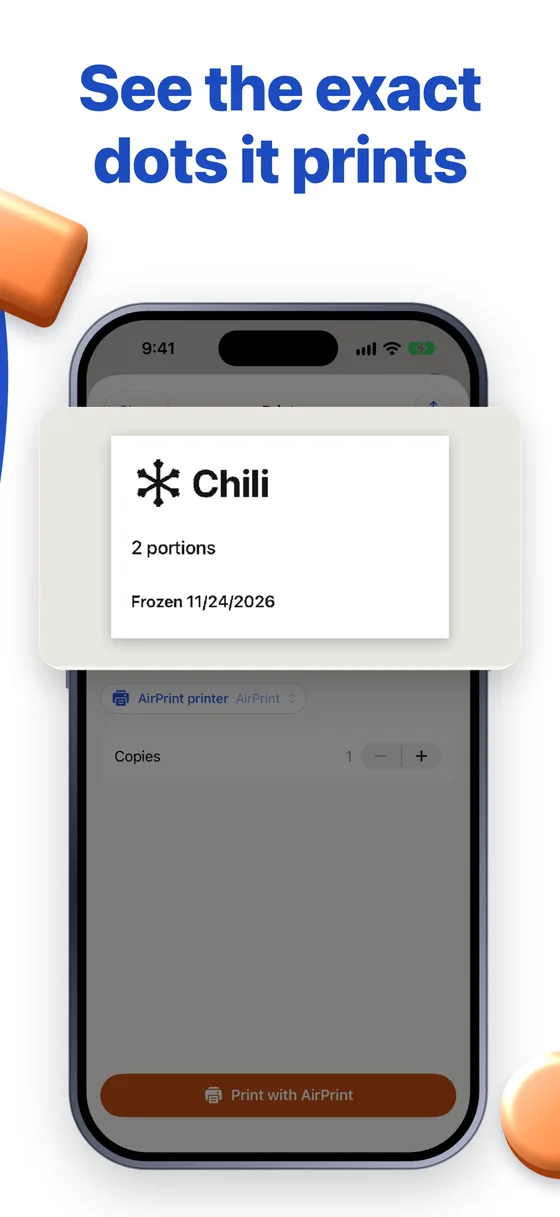
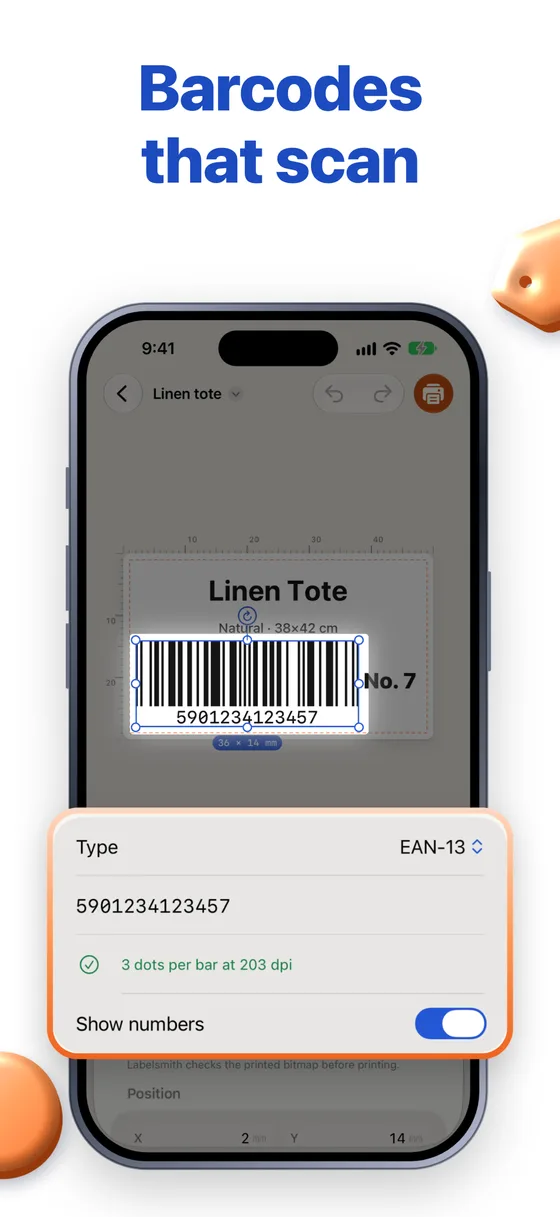
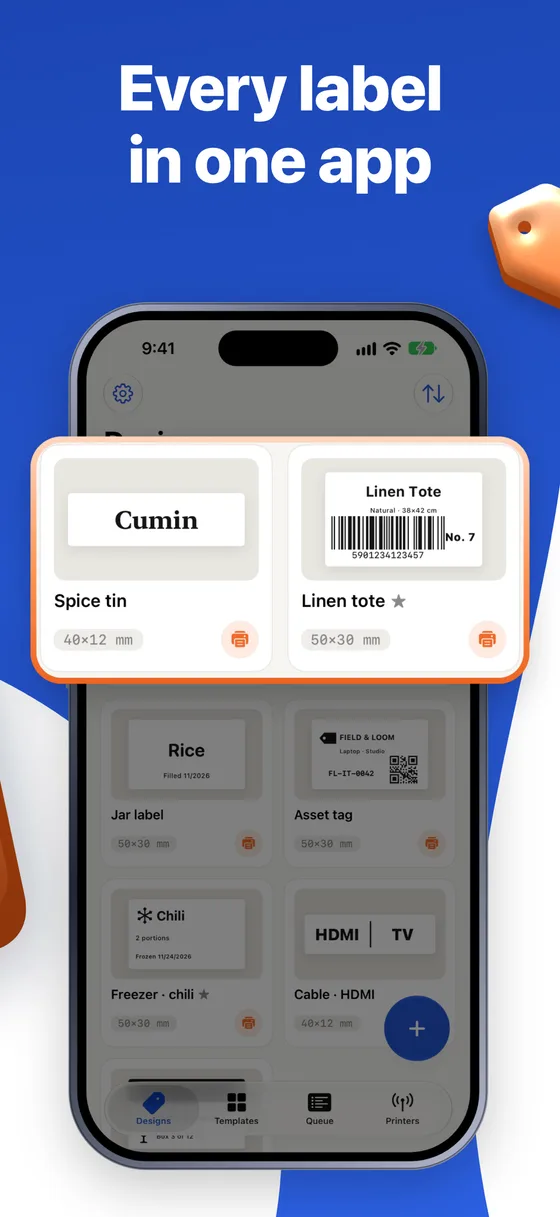
A sheet makes sense when you label a stack of boxes in one sitting. When boxes come in one at a time, a label printer wastes less. Labelsmith for iPhone and iPad prints single labels on NIIMBOT and Phomemo Bluetooth label printers and on AirPrint printers. Its “Box with QR contents” template puts the box name beside a QR code of what is inside, and the storage and moving templates include numbered bins, Open first, Heavy, Keep dry and a room colour code. Labelsmith Pro unlocks every template and adds batch printing from a CSV file.